Getting started
CADHours sits in the Windows tray and records which Inventor or AutoCAD job you are working on, and for how long, so the hours per job are ready when you fill in your timesheet.
Installing
- Run the setup file (for example
CADHours-Setup-0.9.9-beta-until-2026-12-01.exe). - If Windows shows Windows protected your PC, click More info, then Run anyway. This appears because the app is not code-signed.
- Read and accept the licence agreement.
- Leave Start CADHours when Windows starts ticked, so it is always running.
- Click Finish. The tracker starts and its hourglass icon appears in the tray, next to the clock.
No administrator rights are needed: the app installs just for you, into %LOCALAPPDATA%\Programs\CADHours. It needs nothing else installed.
Finding the tray icon
Windows hides most tray icons. Click the ^ arrow next to the clock to show them. To keep the icon always visible: Settings → Personalisation → Taskbar → Other system tray icons, and switch CADHours on.
Right-click the icon for the menu; double-click it to open today’s summary.
Telling it where your jobs are
Out of the box the tracker finds the job from a project folder named like TS487 - Test Station - see Naming your job folders below. If your folders are organised differently, set it up once in Settings → Jobs, and use Test with active document there to check. This can take a little trial and error, so if you get stuck, see the note under the pattern table below - we are happy to help.
Naming your job folders
The tracker needs one thing from your folder names: the job number first, then a space, a hyphen and a space, then what the job is.
| Folder name | Job | Description |
|---|---|---|
TS487 - Test Station |
TS487 | Test Station |
BR132 - Blower |
BR132 | Blower |
The job number is a short code - out of the box two or three letters followed by two or three digits. The folder can be anywhere, as deep as you like: for each file the tracker looks at the folders above it, nearest first, and the first one named this way is the job.
Jobs\
  TS487 - Test Station\          <- the job: TS487
    Test Station.iam             <- booked to TS487
    Components\
      Frame.ipt                  <- booked to TS487
  BR132 - Blower\                <- the job: BR132
    Blower.iam                   <- booked to BR132
Sub-assembly folders such as 01 - Main Beam or Components are not mistaken for jobs.
Number your jobs another way? The out-of-the-box rule is one setting. Change the Project folder pattern in Settings → Jobs to match yours - the Default button puts the original back - and check it with Test with active document. The part of the pattern named key is the job number; the rest of the folder’s name becomes the description.
| Your style | Example folder | Project folder pattern |
|---|---|---|
| Letters and digits (out of the box) | TS487 - Test Station |
the default |
| Year and sequence | 2026-014 - Test Station |
^(?<key>\d{4}-\d{3}) - |
| Plain number | 10452 - Test Station |
^(?<key>\d{4,6}) - |
| Code, then an underscore | TS487_Test Station |
^(?<key>[A-Za-z]{0,3}\d{3,6})_ |
This can be the trickiest part to set up. How jobs are numbered and where files are kept differs from company to company, and a pattern has to match your own rules exactly. If you are struggling to work out the right pattern or folder setup for yours, email us through the contact page - tell us how a job folder and a file path look at your company, and we will help where we can.
How time is recorded
Every few seconds (15 by default) the tracker looks at Inventor and AutoCAD:
- The active file is timed. Whichever file or drawing is active, its job gets the time. Switching between files of the same job keeps timing that job.
- Its job comes from its folder. The tracker walks up the folders above the file until it finds one named like
TS487 - Test Station; the code at the start,TS487, is the job. - Files outside any job - library parts, Content Center, loose files - are booked to
(Other). A file that has never been saved is booked to(Unsaved). - A CAD program open with no file in it is booked to its own job -
(Inventor, nothing open)or(AutoCAD, nothing open)- so time between files is not lost. Rename it or leave it out like any job, or switch it off in Settings → CAD programs. - Nothing is recorded while no tracked CAD program is running, the PC is asleep, or tracking is paused. A sleep is never counted as work.
- A busy CAD program (a long rebuild or regen, a dialog open) carries on timing the same job.
It also notes when each job’s first file was opened and when its last file was closed - see the day summary’s Details.
Inventor and AutoCAD
AutoCAD drawings are tracked the same way as Inventor files, from the drawing active in AutoCAD, and find their job by the same rules. Choose which programs are tracked in Settings → CAD programs; only programs installed on the PC are watched.
- Both open? The time goes to the one whose window is in front. While something else is in front - email, a PDF - the one used last keeps the time.
- One job, one line. An AutoCAD drawing and an Inventor model of the same job add up in the day summary.
- AutoCAD LT cannot be tracked - it has no way for other programs to ask it what is open. Full AutoCAD is needed.
- Job folders. AutoCAD has no project file like Inventor’s, so with no job folders set in Settings → Jobs, drawings are matched by the project folder pattern and the fallback pattern only.
Only the time a file is active counts. Files left open in the background do not add time.
The timing strip and the tray icon
The timing strip is a small bar that stays on top of other windows (without taking focus from your CAD program) and shows what the time is going to right now, with a clock counting up.

- Green - a CAD job is being timed, with its description and the active file.
- Blue - a hand-timed task. CAD time is not counted meanwhile.
- Amber - paused for lunch, or the active file belongs to an ignored job, so the time is not counted.
- Grey - nothing is being timed, and why.
Drag it anywhere; it remembers where you put it. Click it to open today’s summary; right-click it for the tray menu. The round button pauses and resumes tracking. Turn the strip on or off with Show timing strip in the tray menu.
The tray icon shows a green dot while timing a job, a blue dot while timing a task, and no dot when nothing is timed. Hover over it for the job and today’s running total, such as Today: 5.25 of 9.00 h, 0.25 h behind. Notify when timing changes in the tray menu shows a Windows notification each time the job or task changes.
Light or dark: tray menu → Theme - Light, Dark, or Use Windows setting (the default). Open windows switch straight away.
Timing work outside CAD
Meetings, phone calls and site visits are timed by hand:
- Start: tray menu → Start task → pick a recent task, or New task, or started earlier… to type a new one or set the start time back.
- Stop: tray menu → Stop ‘…’. Forgot to stop it? Stopped earlier sets the stop time - and any CAD time after it counts again (see below).
- Change: fix the name or start time, or Switch to another task.
A task wins over CAD time. If Inventor or AutoCAD is also active during a task, that time is not counted, so nothing is counted twice. This also works when you add a task afterwards: a factory tour from 09:00 to 11:00 removes those two hours from whatever the CAD programs recorded.
The CAD time under a task is still recorded - the task only hides it. So if a meeting was started at 10:00, left running until 12:10 and then corrected to end at 10:30 (Stopped earlier, or the entry’s end time in Timer entries…), the CAD time from 10:30 to 12:10 counts again, on the job of each file that was active. Time when no CAD program was open was never recorded; it shows as a gap on the day summary’s timeline, which you can click to book to a job.
A task named after a job is booked to it. Type it the way jobs are shown - TS487 - Design review - and it lands on TS487’s line with the job’s CAD time. “Admin” or “Weekly planning” stay tasks of their own.
Adding tasks afterwards, or ahead of time
In the day summary, Timer entries… adds a meeting that was never timed, or corrects and deletes entries. An entry can also be added before it starts - at 07:59, add Customer meeting from 08:00 to 09:00. It counts toward today’s hours only as it happens, and if it ends early you set the real stop time.
Meetings that repeat every week
A staff meeting every Tuesday and Friday from 08:00 to 09:00 only needs entering once: tray menu → Recurring meetings… (or Recurring… in the Timer entries window) → Add…. Give it a name, tick the weekdays, set the start and end times, the first day and, if it stops, Ends on a last day.
- It goes in by itself. Each day it is held, the meeting is placed in that day’s timer entries, marked (recurring). Like any entry made ahead of time, it counts only as it happens, stops a task that is still running when it starts, and wins over the CAD time it overlaps.
- Booked under its name - and, like a task you start, a meeting named
TS487 - Weekly reviewis booked to the job TS487. Any other name stays a line of its own. - Moved or cancelled on one day? Open that day’s Timer entries… and edit or delete it there - a deleted meeting is not put back. A day can also be called off ahead of time in the meeting itself: Cancelled on → Cancel that day (and Hold it again to undo).
- Not on days off. Nothing is placed on a public holiday, a day of whole-day leave, or a day the tracker never ran.
- Changing or deleting a meeting takes back the copies not yet started that were not changed by hand; a changed meeting then goes in as it now stands.
Time away from CAD
The tracker only sees Inventor and AutoCAD. Time in the workshop, at a customer, or on an old job that needed no model is missing unless you timed a task - so the day looks short, and weeks later nobody remembers what it was.
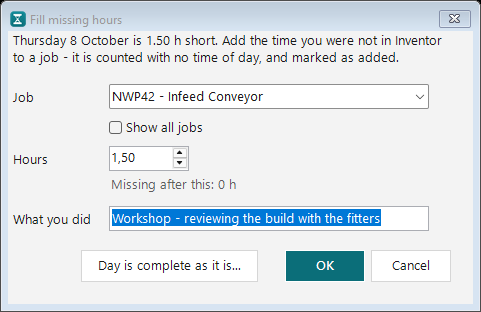
- Fill missing hours. A short day says so under the total - 7.00 of 9.50 h - 2.50 h short - with Fill missing hours… (also Add hours…, on any day). Pick the job, the hours and say what you did; the note is required and goes into the job’s comment for the day. Added hours have no time of day, are marked (+1.50 added), have their own column in Export CSV, and count as the day’s last hours for overtime.
- Part of the CAD time? Some time was recorded, but was really something else - half an hour with the project manager while the model sat open, at a time nobody remembers. In the same window, choose These hours were: Part of the CAD time recorded on TS487. The hours come out of TS487’s CAD time and are booked as non-CAD, so the day’s total stays the same: 6.00 h CAD becomes 5.50 h CAD and 0.50 h non-CAD. Not recorded - add them to the day is the usual case above.
- Any job. The list holds the day’s jobs; Show all jobs adds every job recorded so far and every job folder on disk - including jobs designed before you used the tracker. A job number can also just be typed.
- Later. Any day can be filled in - the next morning the tracker points out the days before that are short, and Short days… in the day summary lists the last two weeks. A short day that is right as it is can be marked Day is complete as it is, with a reason.
- Gaps. Stretches of your working hours with nothing recorded are outlined on the timeline; click one to book it at its times.
- “You were away - what was it?” After 30 minutes without keyboard or mouse, a small window asks when you are back: keep the time on the open job, book it to something else, or don’t count it. Lunch is left out - back a few minutes after lunch, nothing is asked.
- “When did you finish?” Left the PC on with Inventor open overnight, or over a weekend? Back at the PC, a small window shows when the keyboard and mouse were last used and asks when you finished - that time, the end of the working day, another time, or I was working throughout. Everything from then until you came back stops counting. Until you answer, the time still counts and the day summary flags the day; the question comes back on the next start, and from the tray menu (When did you finish…).
The day summary
Open it by double-clicking the tray icon, or tray menu → Today’s summary. It shows one day: each job with its description, rounded hours, minutes, overtime, your comment, and the files worked on, with a note for the day underneath.
| What | How |
|---|---|
| Change day | The arrows either side of the date, the date itself, or Today. |
| Describe a job | The Description column says what the job is - from the project folder’s name (TS487 - Test Station gives Test Station, shown grey), or double-click to type your own - one per job code, kept on every day and through renames. See Descriptions. |
| Comment on a job | Double-click the Comment cell and type - a short note on what changed and why. It goes into Copy and CSV, and builds a history: see Comments. |
| Note for the day | Type in the box under the table - a site visit, a training day, a supplier visit. It goes into the CSV, not into Copy. |
| Leave a job out | Untick Include (that day only), or Ignore always for every day. |
| Merge | Select jobs, Merge into…, and name the job to book them to. |
| Rename | Rename… - for that day, or on every day. |
| Undo edits | Reset day removes that day’s merges, renames and ignores. |
| Timesheet | Copy for pasting (Job, Hours, Comment) or Export CSV… for a range of days. Copy leaves the description out; the CSV has it after Job. |
None of the tidying changes what was recorded, so Reset day always gets back to it.
A timeline under the date shows the day along the hours: your working hours shaded, lunch hatched, and a block for each stretch of time in its job’s colour. Details shows the day’s standard hours, when the tracker was running, and for each job when it was opened, first and last active, and closed. Under the total, Recorded in: Inventor 5.50 h, AutoCAD 2.00 h shows the CAD time per program.
Comments - a history you can look back on
The hours say how long and when you worked on a job. A short comment says what was going on - the story behind the hours. When a customer asks about a change, a colleague takes the job over, or you quote a similar one, the answer is already written down instead of living only in your memory. It takes a few seconds: double-click the Comment cell and type one line, such as:
- Customer changed the spec from manual operation to partially automated.
- Spacing of rollers reduced to 60 mm at customer request.
- Cable tray rerouted; the old route clashed with the pneumatic line.
- Delivery moved forward a week, so the drawings take priority.
A comment belongs to one job on one day, so a job’s comments, day by day, read as its history: when the spec changed, what was redone, when the delivery moved. You will find them again in:
- Copy and Export CSV… from the day summary.
- Statistics - click a project, and its comments by day appear beside the files worked on.
- PDF and Excel reports - tick Comments and files in a detailed report for each job’s comments in the PDF; the workbook has a Comments sheet, and the one-page summary shows the latest comments.
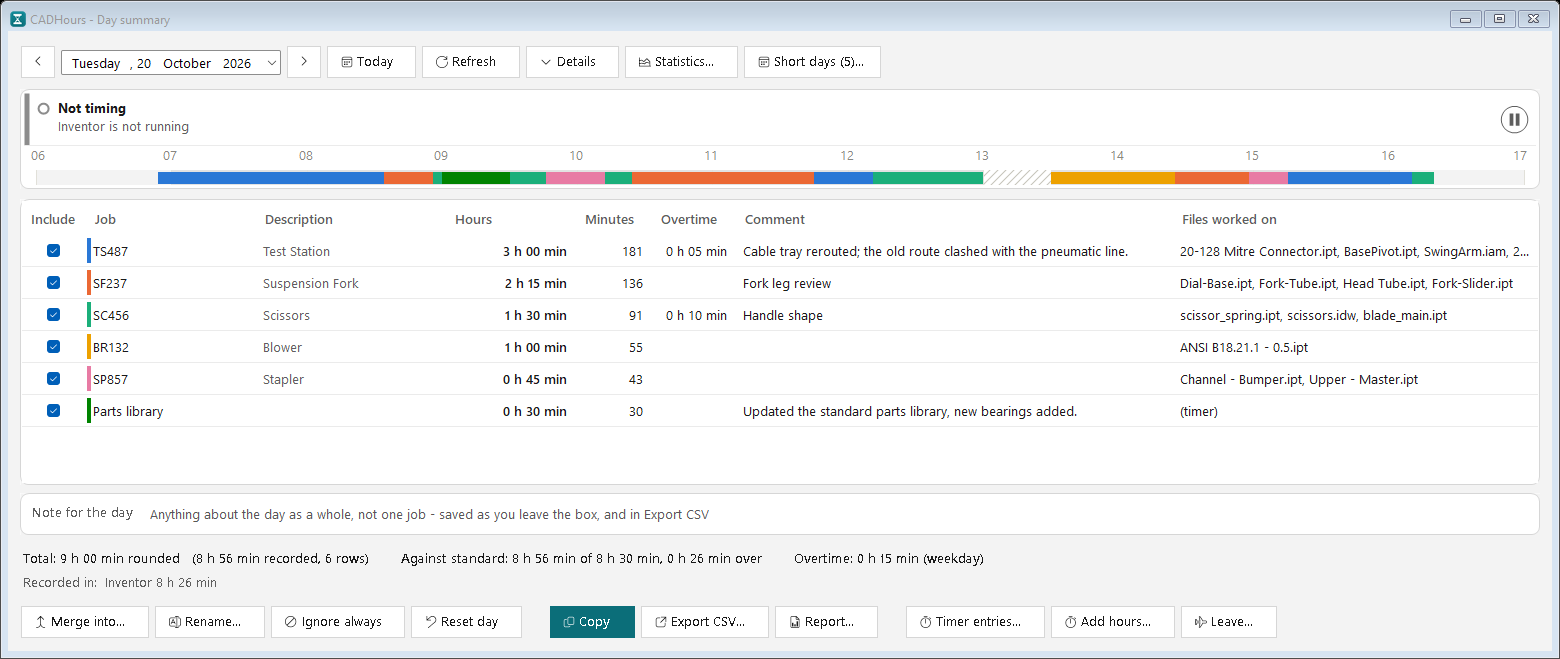
The note for the day is different: it is about the whole day (a site visit, a training day, a supplier visit) and goes into the CSV and the reports’ notes for the days, not into Copy.
Time not allocated to a job
A drawing not saved yet goes to (Unsaved), a file outside your job folders to (Other), a CAD program open with nothing in it to (Inventor, nothing open). That time is in the day’s total, but no timesheet line has it - so the jobs can add up to half an hour less than the day. When a day has such time, an orange line under the total says so - 0 h 30 min of the total is not allocated to a job: (Unsaved) 0 h 30 min - with two ways to settle it:
- Allocate to a job… books it to the job it was for, that day only.
- Ignore it leaves it out of the day. The day is then short by that much - add a timer entry or hours for what it really was.
Until it is settled, reports list it as Not allocated to a job, inside the hours worked.
CAD and non-CAD time
Tick Show each job’s CAD and non-CAD time separately in Settings → Hours, holidays and overtime and each job shows three figures: CAD, Non-CAD and Total. Four hours modelling TS487 and a one-hour design review booked to it show as 4.00, 1.00 and 5.00.
- CAD is the time recorded in Inventor or AutoCAD. Non-CAD is timed tasks, recurring meetings, time away booked to the job, and hours added by hand. Leave and public holidays are neither.
- The total is rounded as before and the two parts are shared out of it, so they always add up to it. It works on days already recorded too.
- Copy then pastes Job, CAD, Non-CAD and Total. Statistics and reports split the hours too. Export CSV always ends with CAD hours and Non-CAD hours columns, whatever the setting.
- CADHours does not spot meetings by itself: non-CAD time is what you time, book or add.
Working hours, lunch and overtime
Set your standard hours per weekday in Settings → Hours, holidays and overtime: a start and end time, and an optional lunch break.
- Lunch: CAD time during lunch is not counted. The strip shows Paused for lunch until it ends. A task timed during lunch still counts.
- Working through lunch: click ▶ on the strip or the summary banner. The rest of the break counts from that minute.
- Running total: the tooltip and day summary compare your hours with the hours required so far. Lunch and the rest of the day are not held against you.
Overtime
| Day | Overtime is |
|---|---|
| Monday - Friday | Time worked (plus any leave) beyond the day’s standard hours. |
| Saturday | Every hour worked. |
| Sunday or public holiday | Every hour worked. |
Less than the minimum (15 minutes by default) does not count, and the rest is rounded down (to 15 minutes by default). Overtime is booked to the jobs of the day’s last hours.
Leave and public holidays
Leave is booked as hours - a whole day at that day’s standard hours, or a number of hours - so it appears as its own line on your timesheet and the day balances.
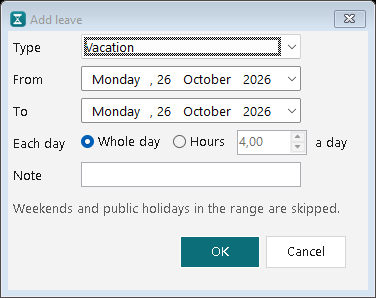
Book it from the day summary’s Leave…, or tray menu → Leave and holidays… → Add leave…. Choose the type (vacation, sick, family responsibility, unpaid, other), the dates, whole day or hours a day, and a note. Weekends and public holidays in the range are skipped.
Public holidays come from a holiday calendar. Seven are built in - South Africa, England and Wales, Germany, the Netherlands, the United States, Australia and New Zealand, national days only, with each country’s rules for a holiday that falls on a weekend. A new install starts with the calendar of your Windows region; change it in Settings → Hours, holidays and overtime. Add day off for everyone… covers an election day, a regional holiday or a company shutdown.
Statistics
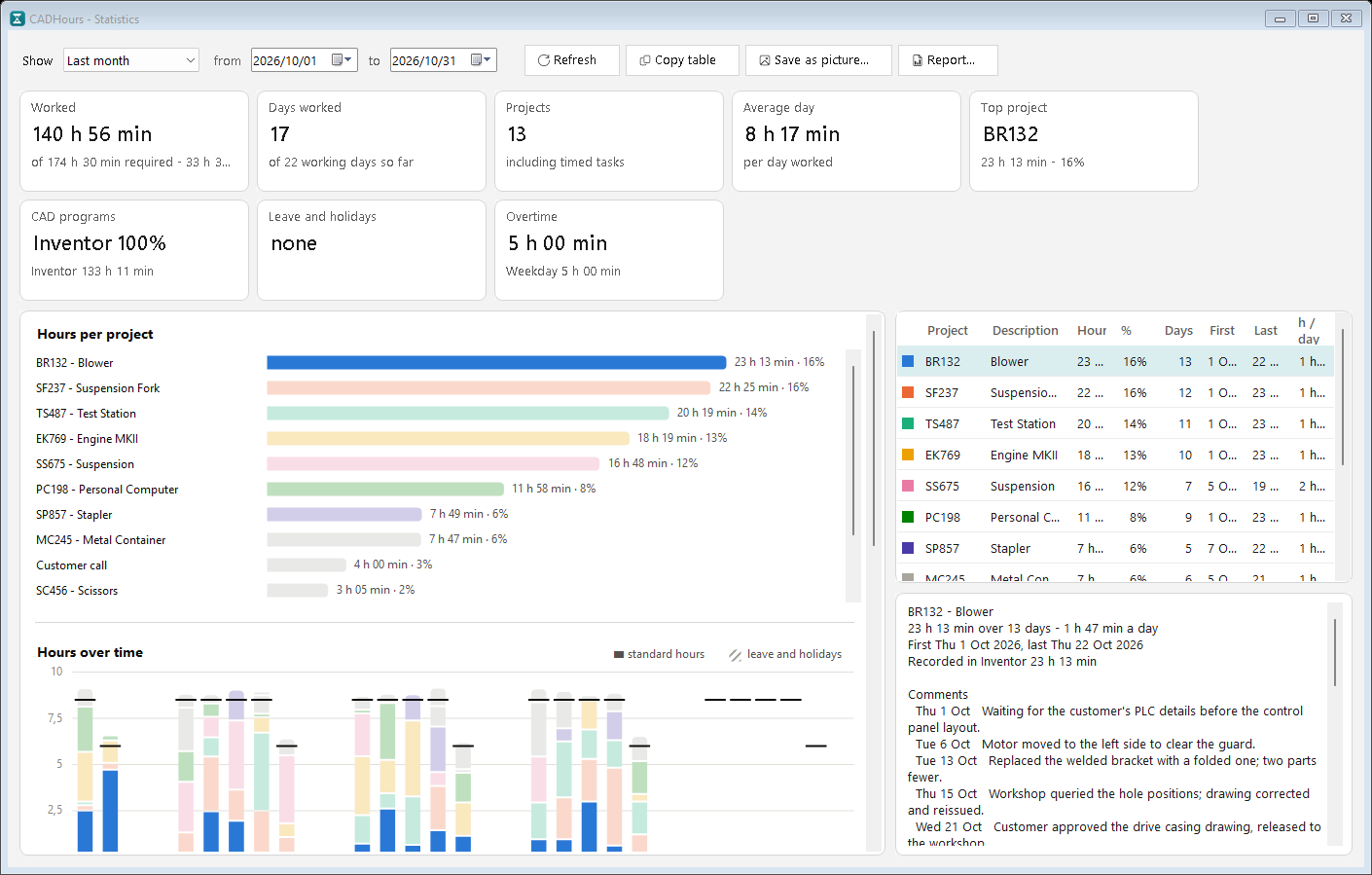
Tray menu → Statistics… shows which projects you worked on, how long, and when - across a week, a month or a year.
- Hours per project - largest first. The top seven have their own colour.
- Hours over time - per day, week or month, stacked by project, against the standard hours.
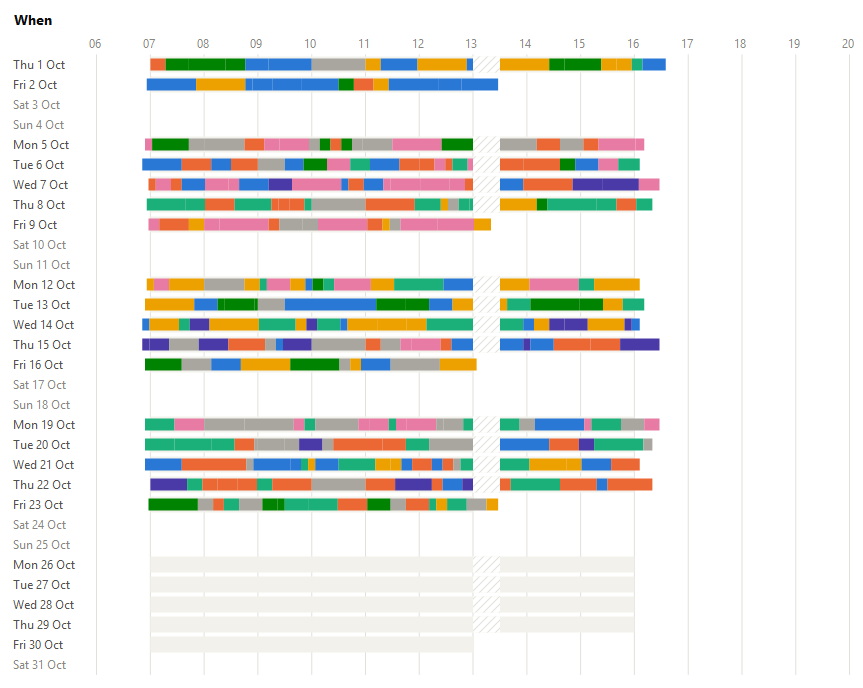
- When - one row per day: what you worked on and when, with leave and holidays named.
The table shows each project’s description. Click a project to highlight it everywhere and see its comments and files. Copy table for Excel; Save as picture… for the charts. A tile shows the time per CAD program; with CAD and non-CAD time on, each project’s bar is solid for CAD and striped for non-CAD.
PDF and Excel reports
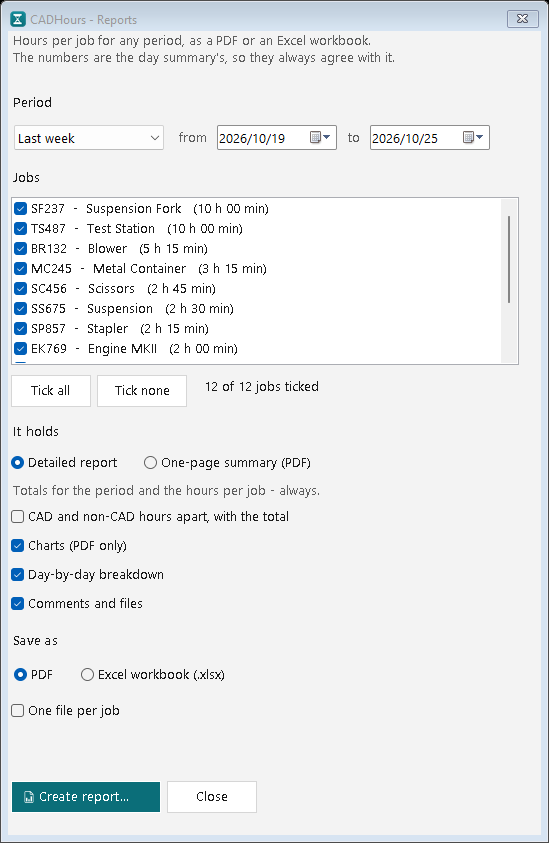
A report puts a day, a week, a month or any period into a file you can keep or send. Open it from the tray menu → Reports…, from Report… in the Statistics window (it starts with the range and project you are looking at), or from Report… beside Export CSV… in the day summary (it starts with the week shown).
- Period - the same choices as Statistics, Selected day (the day shown in the day summary - Today from the tray or Statistics), or any two dates. Nothing is reported before the first day recorded.
- Jobs - the jobs with counted time in the period, all ticked. Tick one job for a report on that job alone. One file per job saves a separate file for each ticked job into a folder you choose. Time not allocated to a job is not in this list: an orange line says how much there is, and the report keeps it in the hours worked as Not allocated to a job.
- It holds - Detailed report: always the totals and the hours per job; tick Charts (PDF only), Day-by-day breakdown and Comments and files to add them. Or One-page summary (PDF): the totals, how they stand against your working hours, the hours per job, the hours over time and the latest comments - always on one A4 page.
- CAD and non-CAD hours apart, with the total - starts from the Settings tick box; change it here for one report.
- Save as - a PDF, or an Excel workbook (.xlsx). The file opens when it is saved.
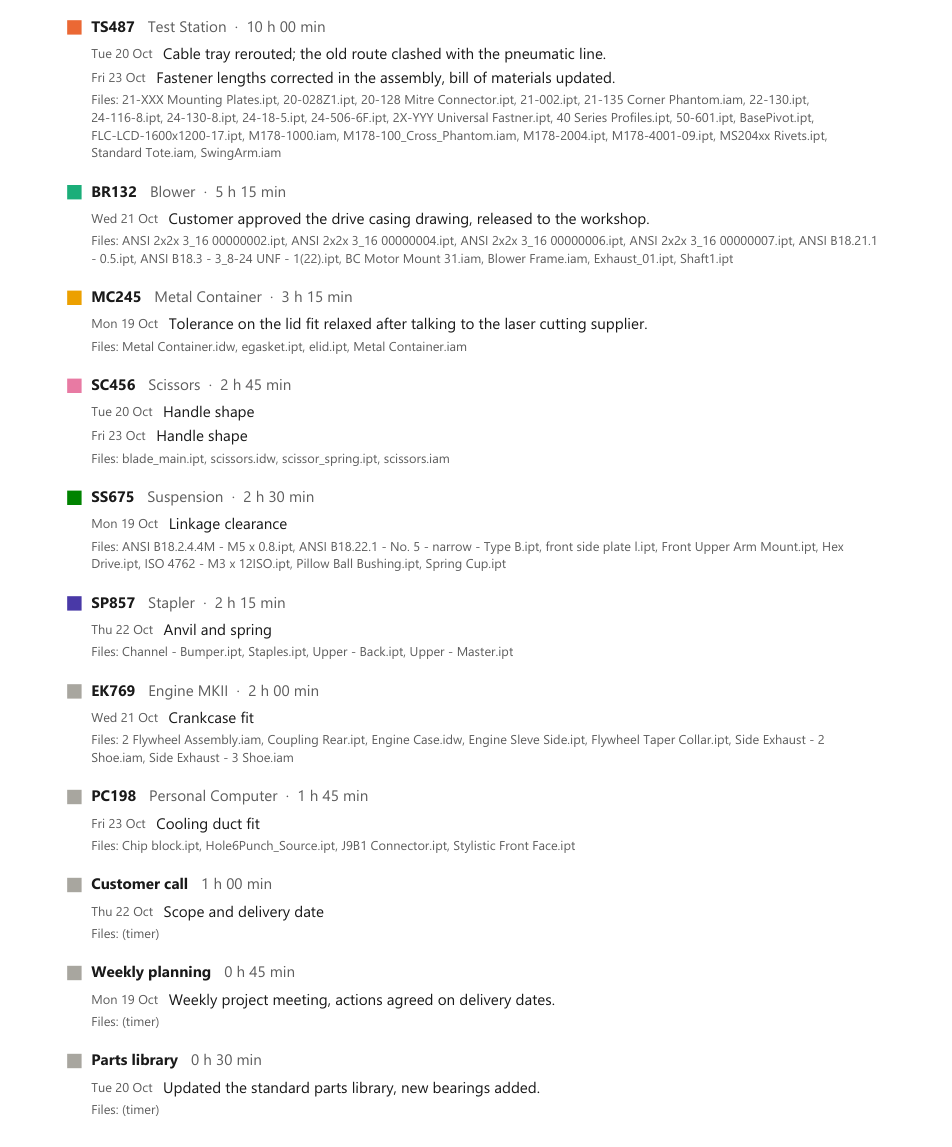
The PDF has a summary, the hours per job, two charts, a table by day (by week or month for a longer period), the notes for the days, and each job’s comments and files. The Excel workbook has the sheets Summary, Hours per job, Day by day, Comments and Files, with hours as plain numbers in decimal hours (2.75 is 2 h 45 min) so they can be added up. It has no charts.
The figures are the day summary’s: each job’s hours are the day summary’s rounded hours added up, and renames, merges, ignored jobs and unticked Include boxes all apply. A report can therefore differ a little from Statistics, which adds the unrounded minutes. When jobs are picked, leave, public holidays and the hours required are left out, because they belong to the whole day.
Settings
Tray menu → Settings…. Nothing changes until you click OK.
Jobs - how a file’s job is found
The rules are tried in order; the first that finds a job wins:
- Project folder. From the file’s folder upwards, the first folder matching the pattern is the job. The default matches
TS487 - Test Stationand books it asTS487. - Job folders and level. The folders your jobs live in (empty means the active Inventor project’s workspace - AutoCAD has none), and which folder level below them is the job: 1 for
Demo Jobs\TS487\..., 2 forDemo Jobs\Northwind Packaging\TS487\.... - Fallback pattern (optional) - a regular expression tried on the whole path; a group named
keyis the job. - Otherwise the file is booked to
(Other).
Test with active document tries the rules as typed on the file active in Inventor or AutoCAD.
Under the test button, How the job is found explains these rules in full, in the order they are tried, with an example path for each.
CAD programs
Which CAD programs are tracked - a tick box for each, and at least one must stay ticked; how often to check them (every 15 seconds by default); and whether to count a program open with no document, as (Inventor, nothing open), (AutoCAD, nothing open) and so on.
Hours, holidays and overtime
How to round each job; hours as decimal (2.75 h) or hours and minutes (2 h 45 min); whether to show each job’s CAD and non-CAD time separately; standard working hours with lunch; the holiday calendar and one-off days off; the overtime minimum and rounding.
Renames and ignores
The permanent renames and always-ignored jobs made from the day summary, so they can be changed or removed.
Descriptions
Each job is shown with a description - in the day summary, on the strip, in Statistics and in Export CSV. It comes from the project folder’s name: TS487 - Test Station gives Test Station, on days already recorded too. Type your own here or in the day summary - such as Northwind Packaging - Test Station - and it wins over the folder name. Jobs found by job folder and level, or by the fallback pattern, have a description only when you type one.
Your data
Everything stays on your computer. It is kept in %LOCALAPPDATA%\CADHours (tray menu → Open data folder):
| What | Where |
|---|---|
| Recorded time, comments and the note for the day - one file per day | days\ |
| Settings | settings.json |
| Holiday calendars | holidays\ |
| Logs, for troubleshooting | logs\ |
Back up the days folder - it is the only copy of your recorded time. Uninstalling leaves it in place, so reinstalling picks up where you left off.
Backup and restore
Tray menu → Backup and restore… saves your data to one zip file - on a USB stick, say - and puts it back.
- Back up - choose Everything (the recorded days, the settings and the holiday calendars) or Settings only (the settings and the holiday calendars, with no recorded time - handy for setting up another PC the same way). Click Back up… and choose where to save the zip.
- Restore - click Restore from backup… and choose a zip. The window says what it holds; tick Settings and holiday calendars, Recorded days, or both, then Restore and restart. CADHours stops any task being timed, closes, puts the files back and starts again.
- Recorded days replace the days with the same dates; days that are not in the backup stay as they are. Settings replace the current settings completely.
- A copy of what was there is kept first, in the
backupsfolder inside the data folder (the last five are kept), so a restore can be undone by restoring that copy.
A backup does not hold the licence, who the tracker records for (identity.json), a running task or the logs. Settings that name folders - your job folders, for one - are restored as they were, so check them in Settings… when restoring onto another PC.
Troubleshooting
| Problem | What to do |
|---|---|
| I can’t see the icon | Click the ^ next to the clock; see Getting started. |
Time goes to (Other) |
The file’s folder does not match your job rules. Use Test with active document in Settings → Jobs. Fix days already recorded with Rename or Merge. |
| Nothing is being recorded | Check the strip: Paused, Paused for lunch, Beta ended, Inventor is not running or No CAD program is running. Check the program is ticked in Settings → CAD programs. |
| AutoCAD is not tracked | AutoCAD LT cannot be tracked. For full AutoCAD, tick it in Settings → CAD programs; it must be installed before the tracker starts. |
| A meeting was counted as CAD time | Add it with Timer entries… → Add; its time is taken off automatically. Don’t know when it was? Add hours… → Part of the CAD time recorded on the job. |
| The jobs add up to less than the day | Some time is not allocated to a job - see the orange line under the total, and Time not allocated to a job. |
| The hours look too high around lunch | Set your lunch break in Settings → Hours, holidays and overtime. |
| Something else | Tray menu → Help and About… → Support → Copy support details, and send them through the contact page. |