What CADHours does
It records which job you work on and for how long, keeps meetings and the workshop straight, and hands you the hours per job for your timesheet.
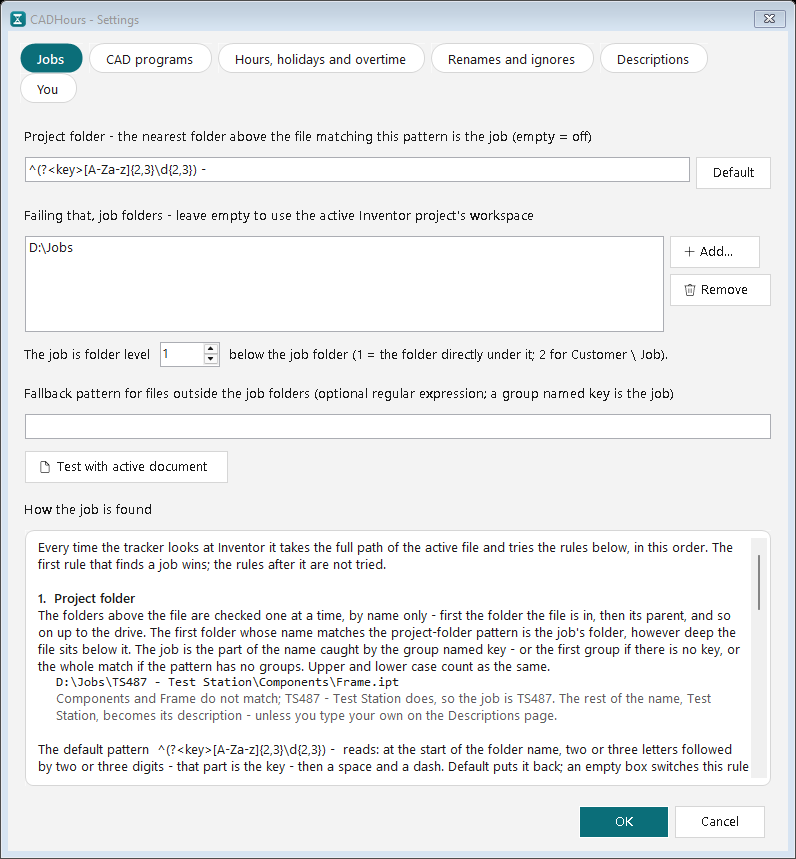
Records by itself
Whatever file is active in Inventor or AutoCAD, its job gets the time. No timers to start.
- The job is found from the folder the file is saved in - for example TS487 - Test Station.
- Works with Inventor and full AutoCAD, on their own or both at once - with the hours per program.
- A different folder layout is set up once in Settings, with a button to test it.




Always know what the clock is on
A small strip on top of your windows shows where the time is going right now.
- Green for a job, blue for a meeting, amber for time not counted, grey when nothing is timed.
- Click it for today's summary. One button pauses tracking.
- Light or dark, to match Windows.
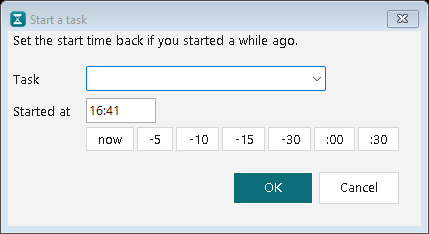
Meetings, the workshop and time away
Not every hour is spent in CAD. Those hours count too.
- Time a meeting or a call from the tray, or add it afterwards - "TS487 - Review" books to TS487.
- A meeting that repeats every week is entered once - it goes into each day by itself.
- Forgot to stop a meeting? Set the real stop time - the CAD time after it counts again.
- A short day can be filled in later, with a note of what you did.
- Back after half an hour away, or left the PC on overnight? It asks what the time was.
| Job | Hours | Comment |
|---|---|---|
| TS487 | 4.00 | Cable tray rerouted; the old route clashed with the pneumatic line. |
| BR132 | 1.50 | Spacing of rollers reduced to 60 mm at customer request |
| Customer meeting task | 1.25 | Customer changed the spec from manual operation to partially automated. |
| LK108 | 0.50 | Lid hinge changed to stainless at the customer's request. |
| Total | 7.25 | of 9.00 h · on track |
Timesheet-ready, every day
Each job's hours, a short comment and the files you worked on. Then copy and paste.
- A short comment on a job - "Customer changed the spec" - writes the story behind the hours, ready when a customer asks, a colleague takes over, or you quote the next job.
- Time on no job - a drawing not saved yet - is pointed out, so no half hour goes missing.
- Merge or rename jobs, then copy into your timesheet or export to Excel.
CAD time and meetings, side by side
A job's CAD hours and its meetings apart, with the total - when you want to see both.
- Tick it in Settings: each job shows CAD, non-CAD and the total - 4.00, 1.00 and 5.00.
- Talked with the PM while the model sat open? Take that half hour out of the CAD time - the day stays the same.
- Statistics and reports split it too, and the CSV always has both columns.
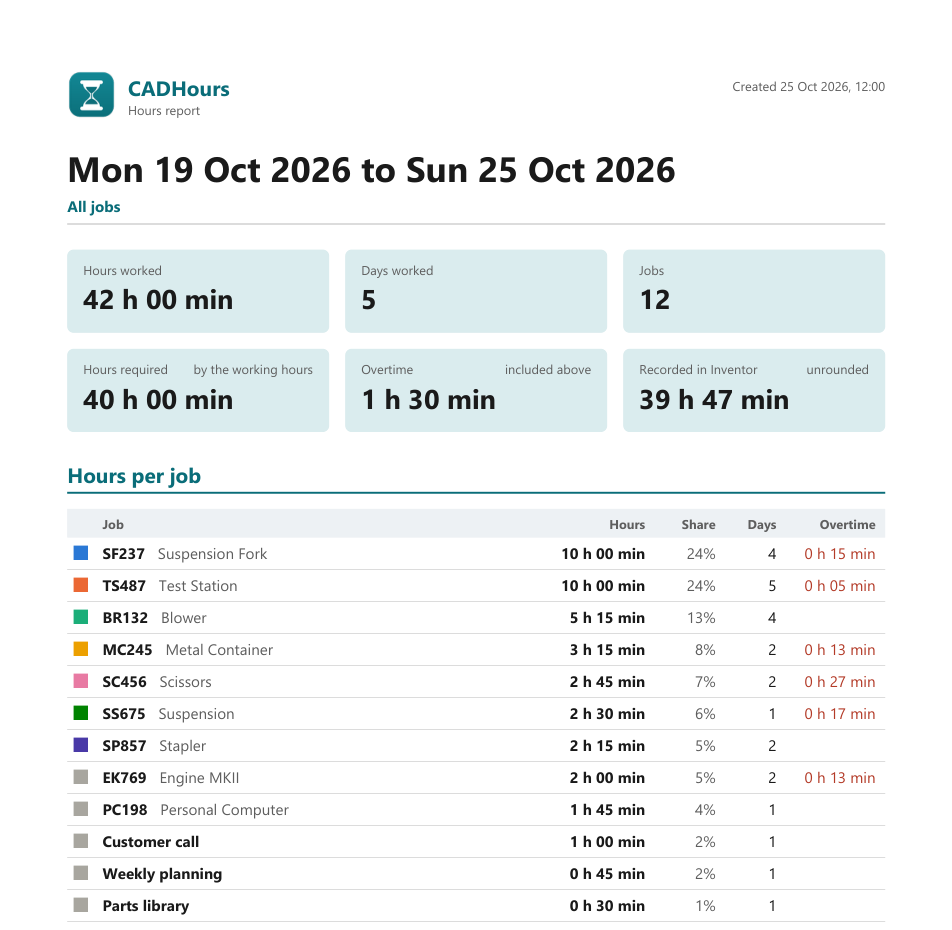
Reports and statistics
See where the weeks went, and keep a record of any period.
- PDF or Excel reports for a day, a week, a month or any dates, with your comments - in full, or on one page.
- Statistics show hours per project, over time and day by day - click a project for its comments.
- The figures always match the day summary.
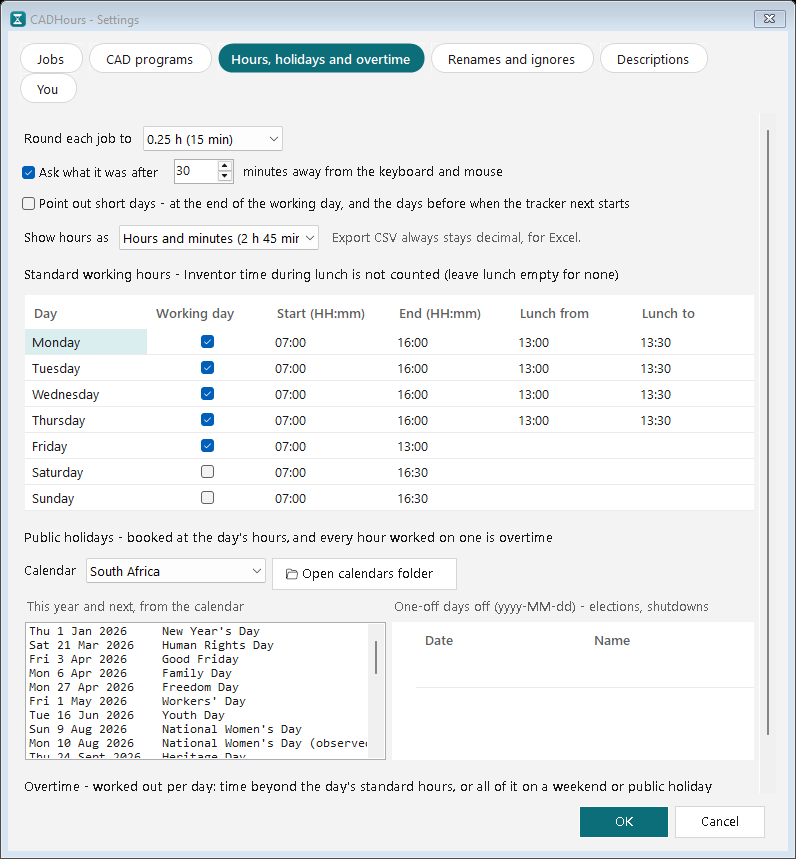
Working hours, overtime and leave
Set your standard hours once, and CADHours keeps score.
- A running total against the hours required so far.
- Lunch is not counted, and overtime is worked out for you.
- Leave and public holidays are booked as hours - holiday calendars for seven countries built in.
days\Your recorded time, one file per daysettings.jsonYour settingsYour hours stay on your PC
No account, no cloud, nothing sent anywhere.
- One small file per day, in your own Windows profile.
- Installs for your Windows account - no administrator rights.
- Uninstalling keeps your recorded time.
- Backup and restore saves everything - or just the settings - to one zip, on a USB stick if you like.
Want to see how it works?
The videos show each part step by step, and the Help guide covers every setting.
Not built yet: AutoCAD LT and other CAD programs, Mac, and team reports. Tell us what you would want next.